Stop
When the alert sounds, tap Stop to silence it. If it has not sounded yet, Cancel tracking ends the journey without waiting until you arrive.
 UbiAlarm
YOUR GETTING STARTED GUIDE · ANDROID
UbiAlarm alerts you when you approach your chosen destination. Set your alarm before you travel and check that tracking is active.
Watch the video guide and follow the steps at your own pace.
Original video in Spanish. Screenshots and text use the selected language.
01 · BEFORE YOU TRAVEL
Search for a place or select a point on the map. Make sure it is where you want to go.
Choose how many minutes in advance you want to be alerted and the alert distance. In distance-only mode, the alert depends on how close you are to the selected point.
Check the name and save the destination if you want to keep it. Activate the alarm when you are ready and check the tracking status. Saving alone does not start tracking.
The time and distance settings do not guarantee an exact alert. Your route, GPS signal, stops and detours can affect when it sounds.
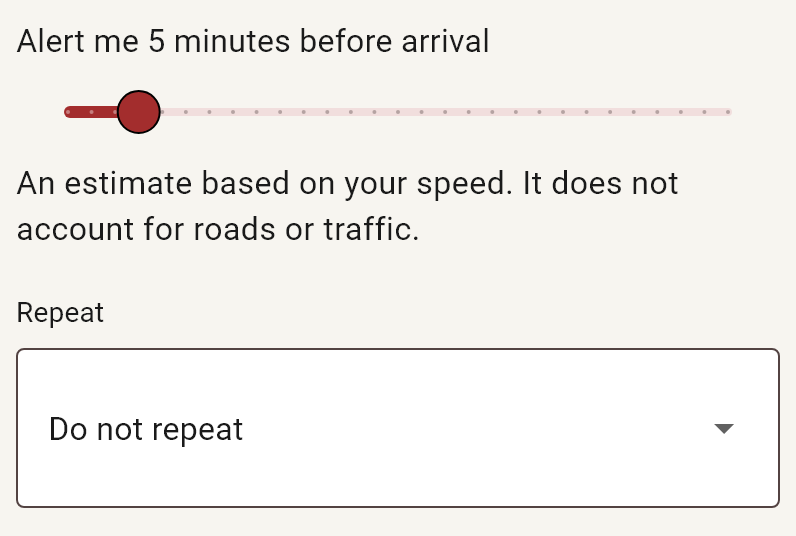
Choose how many minutes before arrival you would like an alert.
App screenshot with example data · Tap to enlarge.02 · DURING YOUR JOURNEY
When the alert sounds, tap Stop to silence it. If it has not sounded yet, Cancel tracking ends the journey without waiting until you arrive.
Silence the alert and choose how many minutes to wait before it sounds again. Follow any on-screen instruction to keep the app open.
Select a saved destination to use it again and check its settings before activating. Free lets you save one destination; Premium and an active trial allow up to ten.
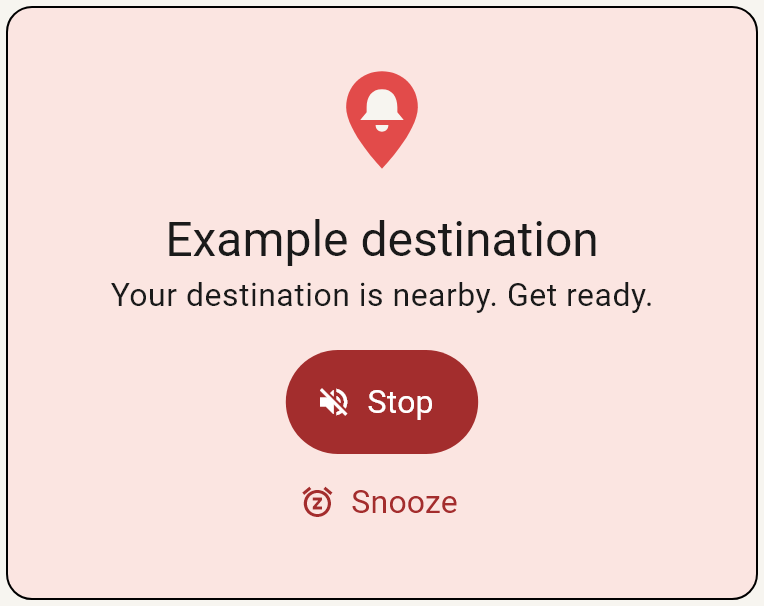
Stop silences the alert; Snooze lets you postpone it.
App screenshot with example data · Tap to enlarge.03 · CHOOSE HOW TO USE IT
Set alarms and save one destination. You can also receive and use shared destinations.
Use Premium features such as additional saved destinations, recurring alarms and sharing links. Check the status shown in the app.
Choose a destination, days and a time window. Review the settings and enable the schedule. An alarm that is already active takes priority.
If Premium expires, your schedule stays saved and is marked as suspended because Premium is required. No new run starts, but one already in progress can finish within its scheduled time window.
With Premium or an active trial, select a point and tap Share destination. Choose a messaging app in the Android share sheet. The link lasts seven days; anyone who has it can forward it.
Only the point and its label are shared, not your time, distance, sound or recurring settings. Receiving destinations in the app has been validated on Android. The link also lets you review the point in a browser. iPhone integration is still pending.
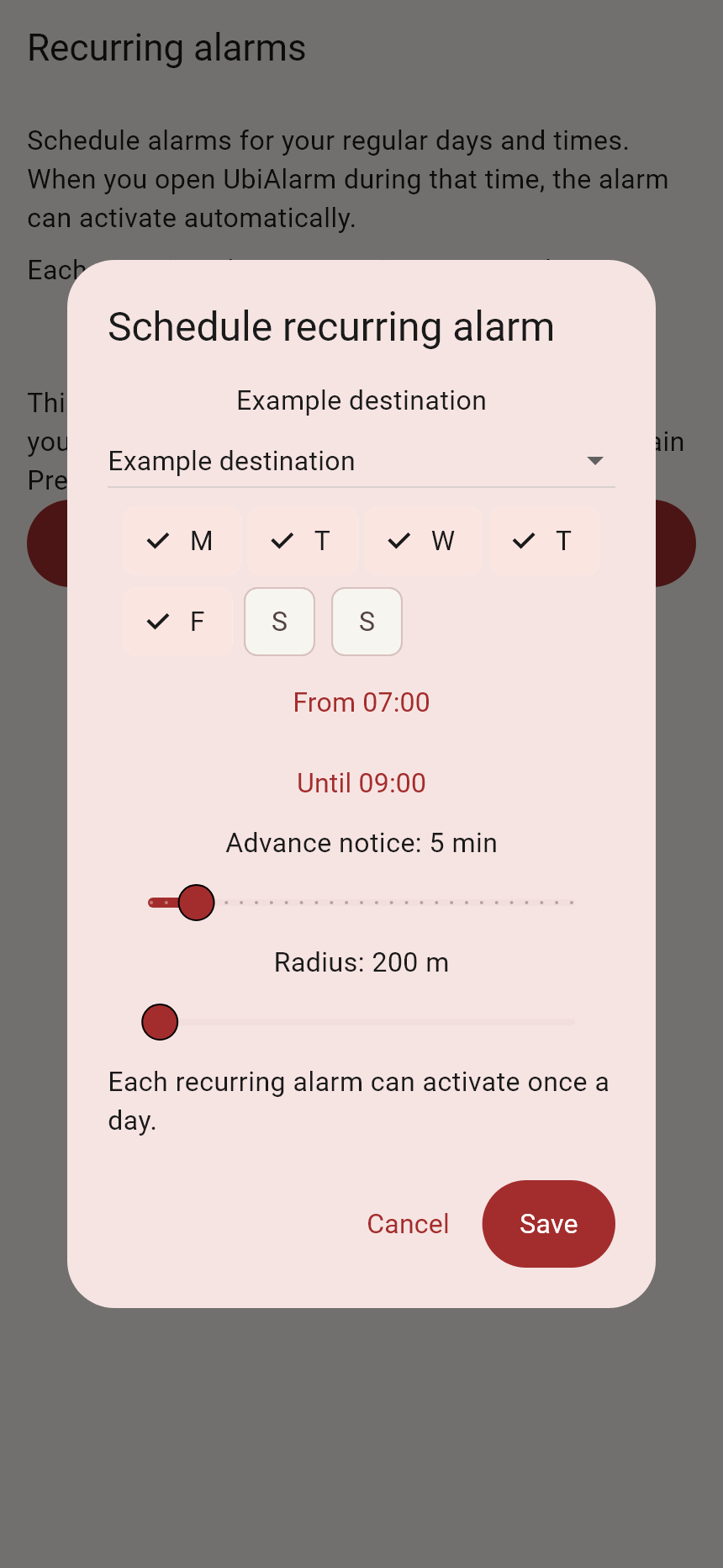
Select the days, time window, advance warning and radius.
App screenshot with example data · Tap to enlarge.04 · A DESTINATION SHARED WITH YOU
On Android, the link may open UbiAlarm directly. If it opens a browser, you can review the point there. The website never activates an alarm.
The destination appears as a received destination draft. Choose your own time and distance settings, then tap Use this destination.
Tap Activate alarm to start the temporary journey. Opening the link does not automatically save or activate anything.
Free can use this temporary destination even when its one saved-destination slot is full. It does not use a slot, delete your saved destination or require you to save it.
If you already have an active alarm, it remains unchanged and the new destination waits. If the link has expired or will not open, ask the sender for a new one.
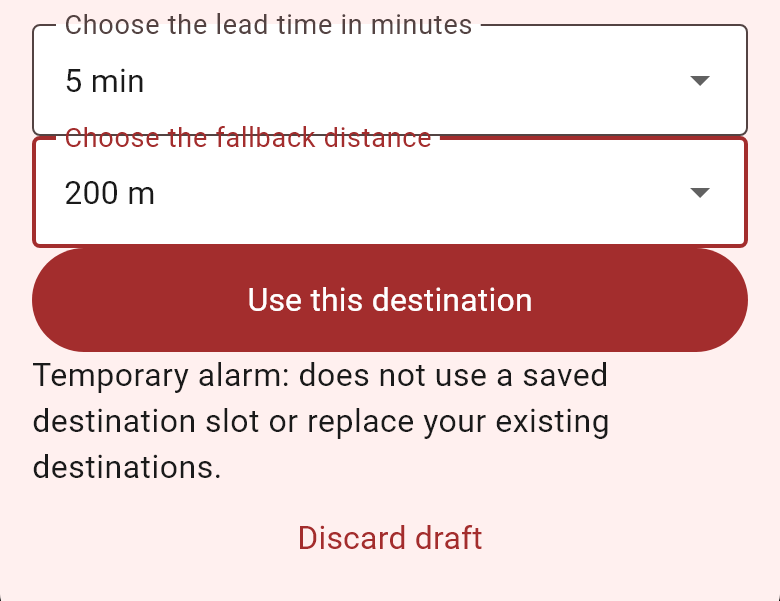
Review the point and set your time and distance before tapping Use this destination.
App screenshot with example data · Tap to enlarge.05 · AFTER THE ALERT
After stopping a real alert, you can rate it. The alarm stops immediately; giving feedback is entirely optional.
Record that the alert timing was right.
Choose Too early or Too late, then how much: 1–2, 3–5, 6–10 or more than 10 minutes.
You can dismiss the question without answering. Feedback is saved only on your device, without coordinates, destination or identity. It is not sent to the server and does not automatically change your alerts.
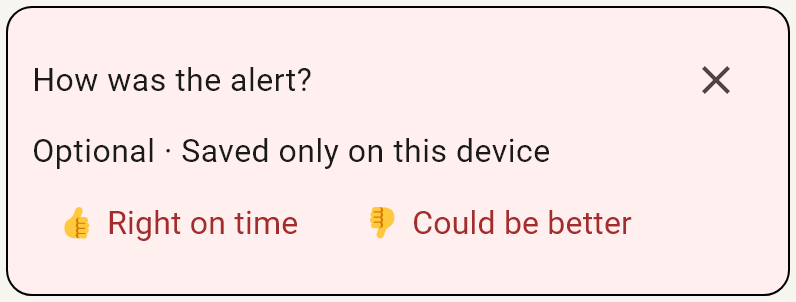
Choose Right on time, Could be better, or dismiss the question.
App screenshot with example data · Tap to enlarge.06 · TIPS AND HELP
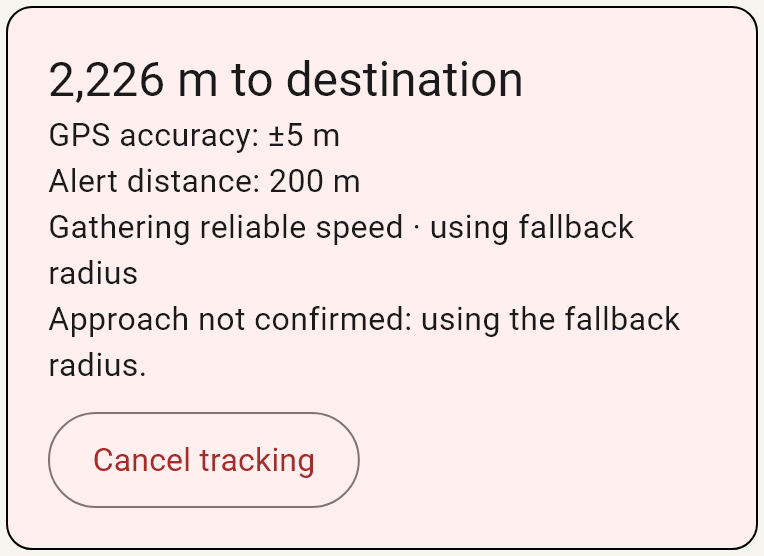
Check the distance, accuracy and tracking status.
App screenshot with example data · Tap to enlarge.Open Contact and help in the app or use our form. Tell us what happened and which phone you use. Avoid including addresses, private links or sensitive information.
Contact and helpcontacto@marantel.com